You can cancel a long-running Cube View that contains paging in the Excel Add-In or Spreadsheet during the initial load of the Cube View. You can also cancel a single page using Task Activity instead of waiting for the entire Cube View to load and process.
Paging Controls
Navigate pages by selecting the forward and back arrow icons in the lower right corner. Each page will display the page number and data loaded in a percentage below the tabs.

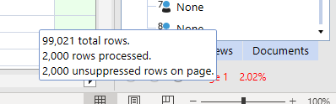
The paging tooltip lists the number of total rows, rows processed, and unsuppressed rows on a page.
Connect to a Cube View with Paging
You can connect to a Cube View with paging in Excel Add-In or OneStream Spreadsheet.
-
In the Windows application, locate the OneStream ribbon, then select Tools > Spreadsheet > Cube Views. In Excel Add-In, under the OneStream ribbon, select Cube Views.
-
Select Cube View Connections to add the Cube View connection.
-
When the Cube View Connection dialog box displays, select the Add button.
-
In the Cube View Connection dialog box, select the ellipsis next to the Cube View field.
-
Open the Object Lookup tool. Use the Search field to search for your Cube View, and select it in the navigation tree. Then, select the OK button.
NOTE: It may take a long time for the parameter dialog box to display for Cube Views containing parameters. You must enter or choose a specific value after selecting the OK button and the Cube View.
-
In the Cube View Connection dialog box, select Close.
-
Select the right corner of the Cube View to display the paging controls. You can navigate between pages with the arrow icons in the lower right corner. The percentage of loaded data will display next to the paging controls.
Load an Excel File with Cube View Paging
You can load an Excel file that contains a Cube View that needs to be paged in Excel Add-In or Spreadsheet.
-
In the Windows application, locate the OneStream ribbon, then select Tools > Spreadsheet > File > Open. In Excel Add-In, under the OneStream ribbon, select File > Open.
-
Select a file from your local folder or OneStream File System, and then select Open.
-
From the OneStream ribbon, select the Refresh Sheet button. The Cube View data will refresh, and the paging controls will display.
-
You can navigate between pages with the arrow keys. The percentage of loaded data will display next to the paging controls.
Task Activity: Cancel Cube View with Paging
In Task Activity, a user or administrator can cancel a Cube View in Task Activity in Excel Add-In or Spreadsheet.
-
In the Windows application, locate the OneStream ribbon, then select Tools > Spreadsheet > Cube Views. In Excel Add-In, under the OneStream ribbon, select Cube Views.
-
Select Cube View Connection and add the Cube View connection.
-
When the Cube View Connection dialog box displays, select the Add button.
-
In the Cube View Connection dialog box, select the ellipsis next to Cube Views.
-
Open the Object Lookup tool. Use the Search field to search for your Cube View, and select it in the hierarchy. Then, select the OK button
-
Select the right corner of the Cube View to display the paging controls. Select the Next Page button.
NOTE: If the Next Page load time is longer than 10 seconds, a dialog box will display, enabling you to cancel the Cube View.
-
Select the Task Activity icon. A Cube View task type displays in the Task Activity dialog box.
-
Use the Running Task Progress icon to open the Task Progress dialog box.
-
In the Task Progress dialog box, it will display the indeterminate progress bar. Use the Cancel Task button to cancel your task.
-
Refresh the Task Activity dialog box. The Task Activity dialog box will display the task status if a user or administrator canceled the task.
NOTE: Canceling the Next Page load for a Cube View or Quick View will display the #REFRESH text in the data cells, rather than the page blank for the Initial Load.

